
Asana Project Templates: Best Asana Templates + How to Use Them
The real value of Asana project templates is not just faster setup. It is building repeatable workflows that scale. This guide breaks down the best template types, practical use cases, and the exact steps to create templates that support better execution.


Many teams are stuck in a loop, executing the same project steps again and over. Asana project templates break that cycle by turning regular tasks into smart, reusable systems. And with Asana time tracking integration, you not only get things done faster, but you also know exactly where every minute goes. More than 85% of Fortune 100 companies utilize Asana for this reason.
This article will teach you what Asana templates are, how to quickly find and utilize them, which ones are best for common tasks, and how to design your own templates from scratch.
What are Asana project templates?
Asana project templates are project structures that teams may use over and over again to make their workflows more consistent and cut down on setup time. They enable you copy tasks, schedules, and processes without having to start over with new projects. The following are the main parts of asana templates for projects.
Teams don't have to start from scratch; they can use pre-structured workflows that show how work really gets done. This is especially helpful for procedures that happen over and over again, like onboarding, campaigns, or product releases. The actual value comes from being consistent. When teams utilize the same structure over and over:
- There are fewer mistakes.
- Work gets easier to plan.
- Reporting stays the same for all projects.
It is also easy to grow with templates. As workflows get bigger, teams can use Asana project templates to keep things organized without making them more complicated. In brief, Asana's project templates make labor that needs to be done over and over again into predictable processes instead of one-time tasks.
Where to find templates in Asana
There are a few ways to find templates in Asana.
1. The template library
Asana has a built-in portfolio of templates for teams including marketing, IT, HR, and product. To get to it, click "Create Project," choose "Use a template," and then look through categories like marketing, operations, or IT. You can look at each template before picking one that works for you. These templates cover frequent situations, such as:
- Campaign management
- Launching new products
- IT tickets
- Tracking goals
2. Team templates
Teams can make and save their own Asana templates that are based on real work. To achieve this, open a project that is already there, click "Customize" or "Save as template," and then save it for later use. This method makes sure that templates show how your team really operates instead than using generic frameworks.
3. Duplicating existing projects
Copying a workflow that currently works well is typically the quickest way to get things done. To change the dates, owners, and other details of a project, open it and choose "Duplicate project." People often use this strategy to make Asana project templates that are particular to certain teams or processes that happen over and over again.
How to use Asana project templates
To use Asana project templates, you first choose a template, then make changes to it, and last make sure it fits with your workflow. The idea isn't only to use a template; it's also to make it look like how your team really works.
Step 1: Pick a template
Choose the option that is most like how you operate. You might get this from the Asana template library, your team's saved templates, or a project you already have that you wish to utilize again. Picking the correct beginning point cuts down on the amount of work that needs to be done later.
Step 2: Start a new project
After you choose a template, make a new project from it. Choose a name for it, a layout (list, board, or timeline), and who should be able to see it.
Step 3: Assign owners
Most templates have owners who are just there to fill in the blanks. You can either replace these with real team members or give them roles based on what they need to do. This makes sure that everyone is responsible from the outset.
Step 4: Adjust dates and dependencies
You'll need to adjust the due dates to align with your project's actual start date, and modify dependencies as needed. Fortunately, Asana offers dynamic timeframes, simplifying the process of adjusting schedules without requiring a complete overhaul.
Step 5: Customize tasks and fields
Make sure the structure fit your way of working. Adjust task descriptions, process stages, and custom fields, such as priority and status o reflect your team's preferred method of tracking progress.
Step 6: Check views
Look at how the project looks from different angles. Use the list view to see what has to be done, the board view to see how things are going, the timeline to plan, and the calendar to see when things are due. Alignment is the key. A template only works if it shows how your team really operates, not just how it was meant to work.
Types of Asana project templates
There are two main types of Asana project templates: pre-made and bespoke. The main distinction is how much control you require over your work.
| Type | What it is | Best for | Typical examples | Key advantage |
| Pre-built | Templates created by Asana or shared libraries | Teams that want a quick start | HR onboarding, campaign plans, event planning, and general project workflows | Fast setup with a proven structure |
| Custom | Templates created internally | Teams with specific workflows | CRM pipelines, IT workflows, SOPs, product launches | Full control and consistency |
Pre-made templates are a fantastic place to start. They let teams get started quickly without having to spend time developing a structure from scratch.
Templates that are made just for you are distinctive. They are based on how your team really works, including your protocols, approvals, and reporting. This makes them more dependable over time, especially when tasks get more complicated.
As teams have more experience, they frequently switch from pre-made options to custom Asana project management templates that fit their daily work better.
Best Asana project management templates
Thebest Asana project templates are based on workflows that teams do every day. Here is a short list of templates that might help you plan, carry out, and report on your work.
Project plan template
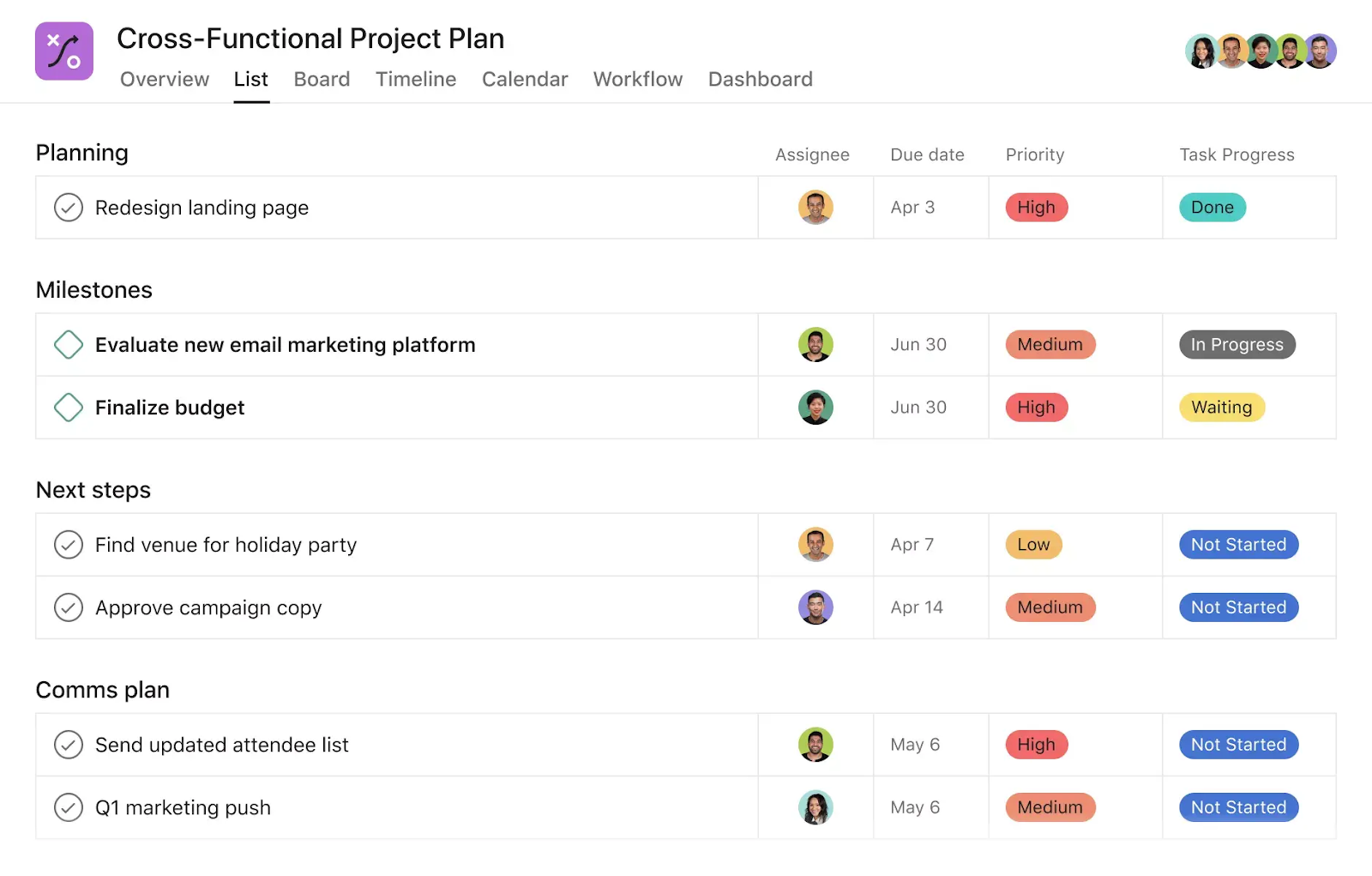
Best for: Structured project execution
What it includes
A project plan template in Asana breaks work down into clear phases, milestones, and tasks. It specifies deadlines, defines who owns what, and contains status checkpoints to keep track of progress throughout the project.
Setup tips:
- Set clear boundaries for the main phases early on to make things easier to follow.
- Use milestones to mark important decisions and deliverables, not just the end of a work.
- Add status fields so that you can keep track of progress on all tasks.
- To avoid any ambiguity, it's essential that everyone understands their specific responsibilities at each stage of the process.
▶︎ Check it out
2. Agile sprint planning template
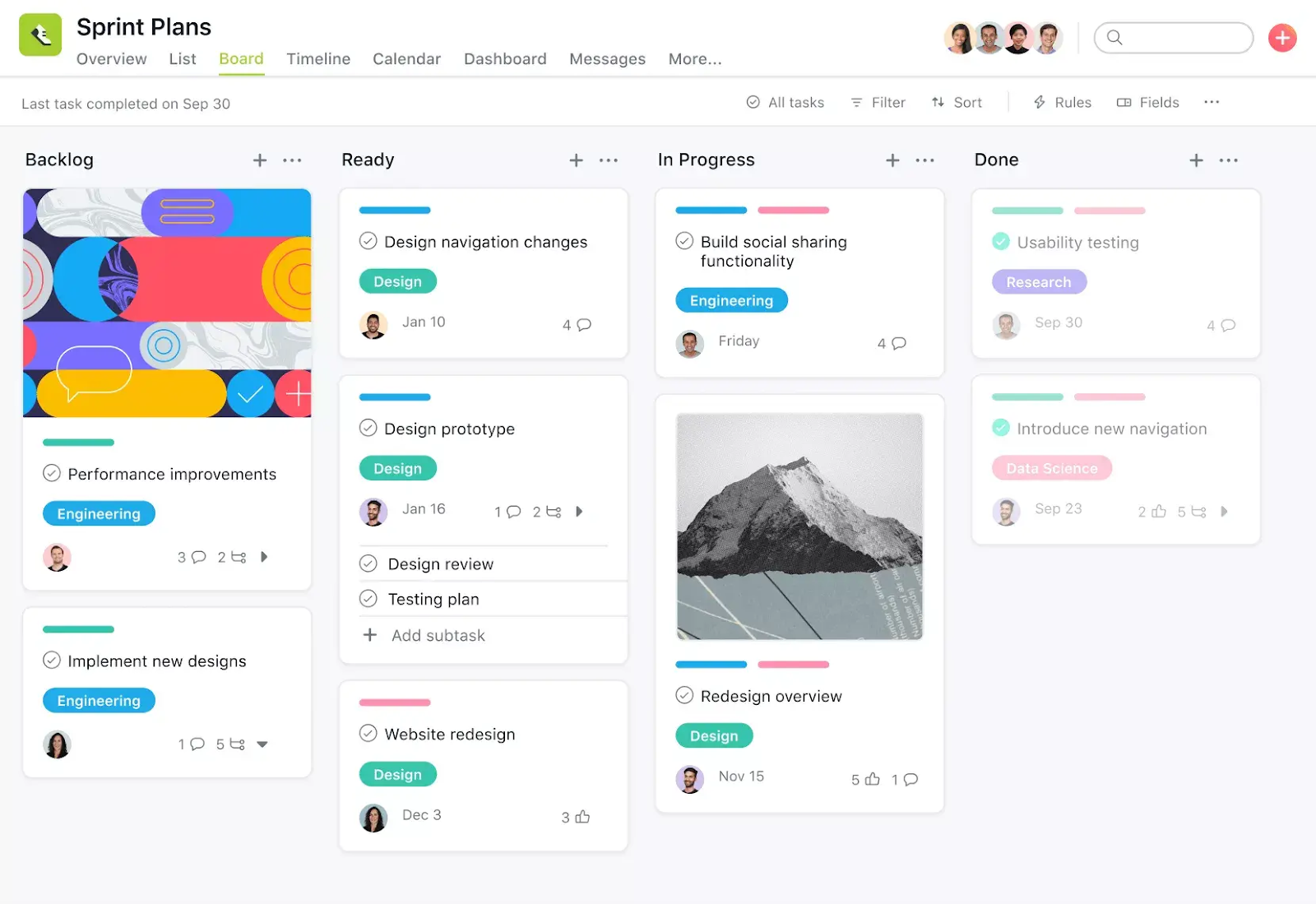
Best for: Agile teams and product development
What it includes
With Asana's agile sprint planning template, teams can make a clear backlog of sprint work, set sprint goals, and keep track of their progress with structured tasks. It usually has a list of items that need to be done, fields for estimating how long things will take, sprint goals, and a clear "definition of done" to make sure that all iterations are the same.
Setup tips:
- To avoid confusion, keep the backlog distinct from the work that is currently going on.
- Use custom fields to estimate story points or effort.
- Make sure everyone on the team knows what the sprint goal is so that everyone is on the same page.
- Keep track of tasks that spill over to make planning more accurate in subsequent sprints.
▶︎ Check it out
3. Template for a Gantt chart or timeline
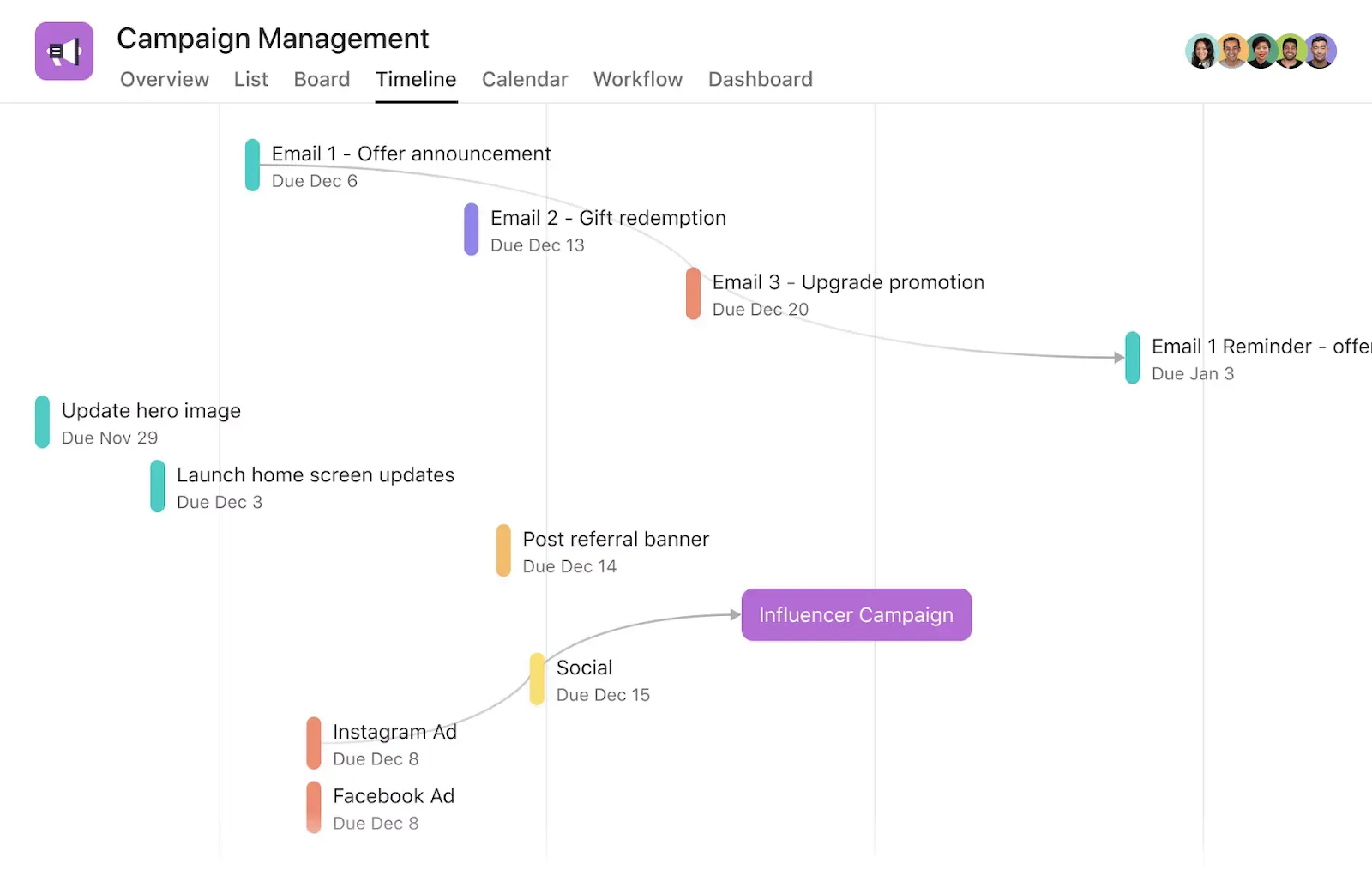
Best for: Planning dependencies and schedules
What it includes
A Gantt or timeline template in Asana helps teams organize their work over time by showing tasks, dependencies, and important milestones. It shows how jobs overlap, where there can be delays, and how different sections of the project are connected.
Setup tips:
- Map dependencies early on to figure out the right order of tasks.
- Use the timeline view to find overlaps and avoid conflicts in your schedule.
- Add milestones to make important deadlines and checkpoints stand out.
- Check the timeline often to make sure it stays accurate even if things change or take longer than planned.
▶︎ Check it out
4. Capacity planning template
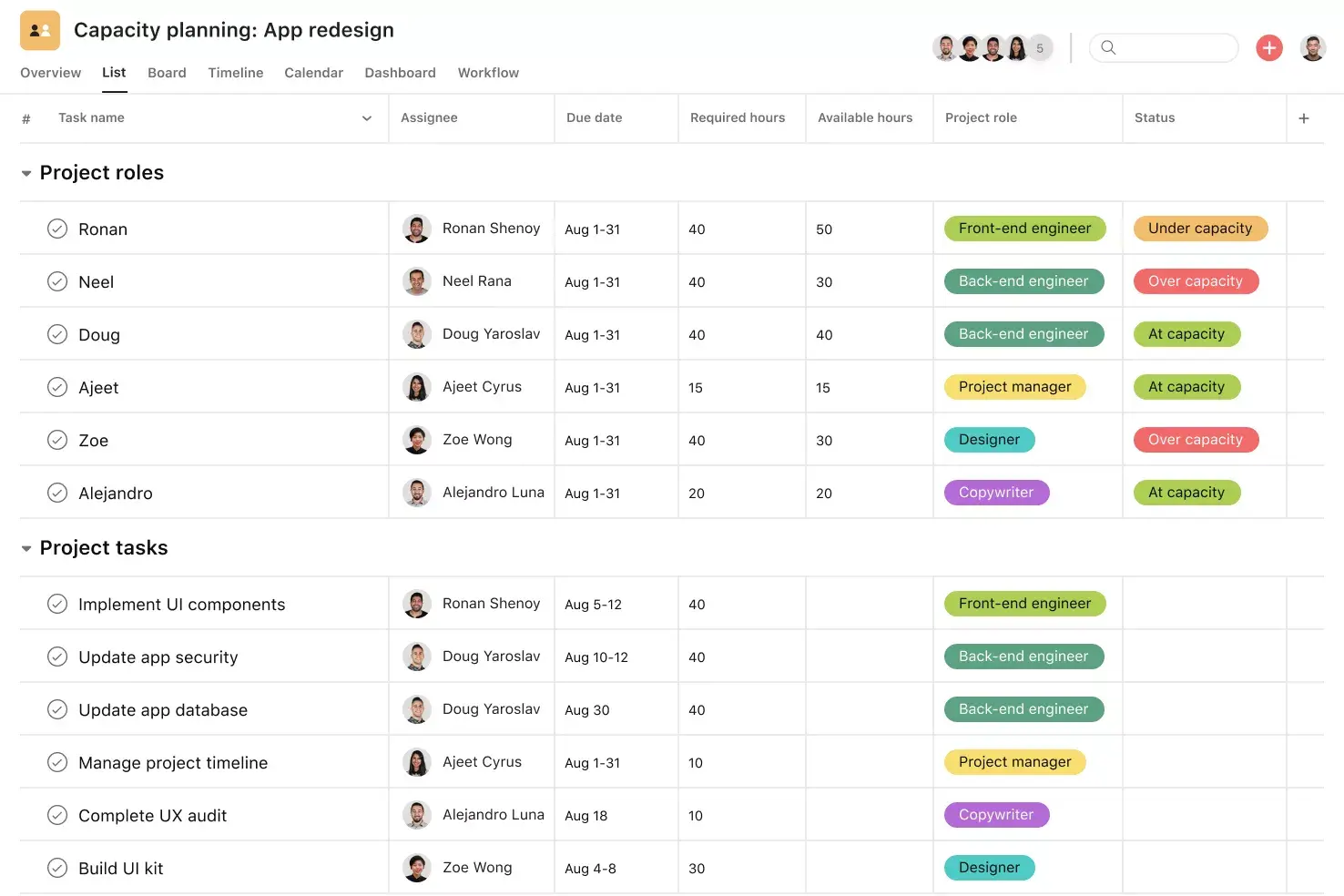
Best for: Resource management
What it includes
Asana's capacity planning template helps teams figure out how to balance their work with the resources they have. It shows who is working on what, how work is divided up, and whether the team or project's capacity is being exceeded by demand.
Setup tips:
- Add fields for workload or effort to keep track of how much labor each task needs.
- Check your team's capacity often to see if they are over- or under-allocated.
- To eliminate hidden workload gaps, make sure everyone knows who is responsible for what.
- Before giving someone new job, check to see if there is enough demand for it.
▶︎ Check it out
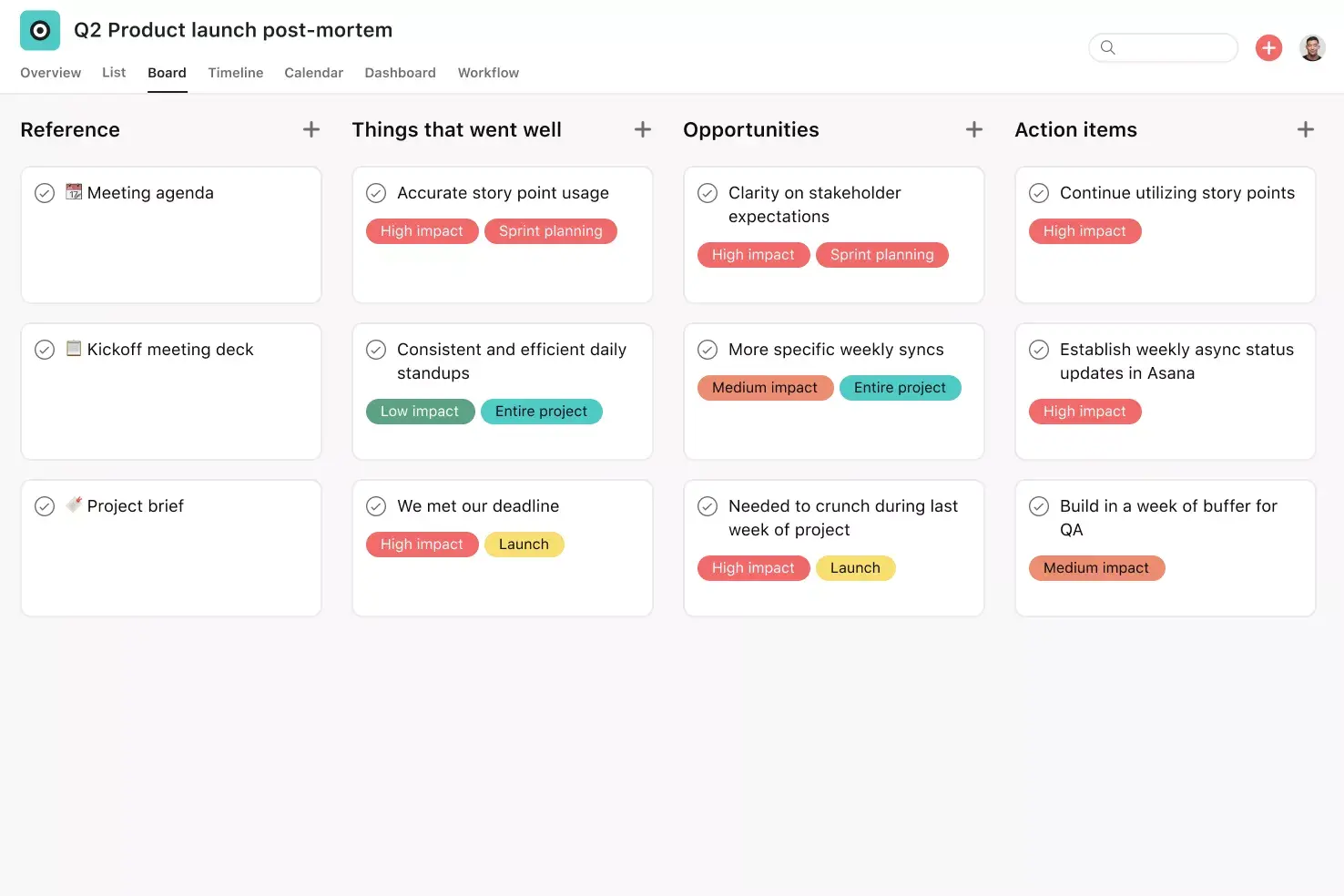
5. Standups + retrospectives + postmortem templates
Best for: Continuous improvement
What it includes
These templates help teams keep giving and getting feedback by organizing daily updates, retrospective insights, and postmortem analysis. They help teams keep track of blockages in real time, think about what worked and what didn't, and write down the core causes so that problems don't happen again.
Setup tips:
- Keep standup updates short and regular so that problems come up immediately.
- Make sure that retrospectives have distinct topics, such what worked, what didn't, and what could be better.
- Use postmortem templates to write down the main causes and what you plan to do next.
- Instead of broad input, focus on insights that can be put into action.
▶︎ Check it out
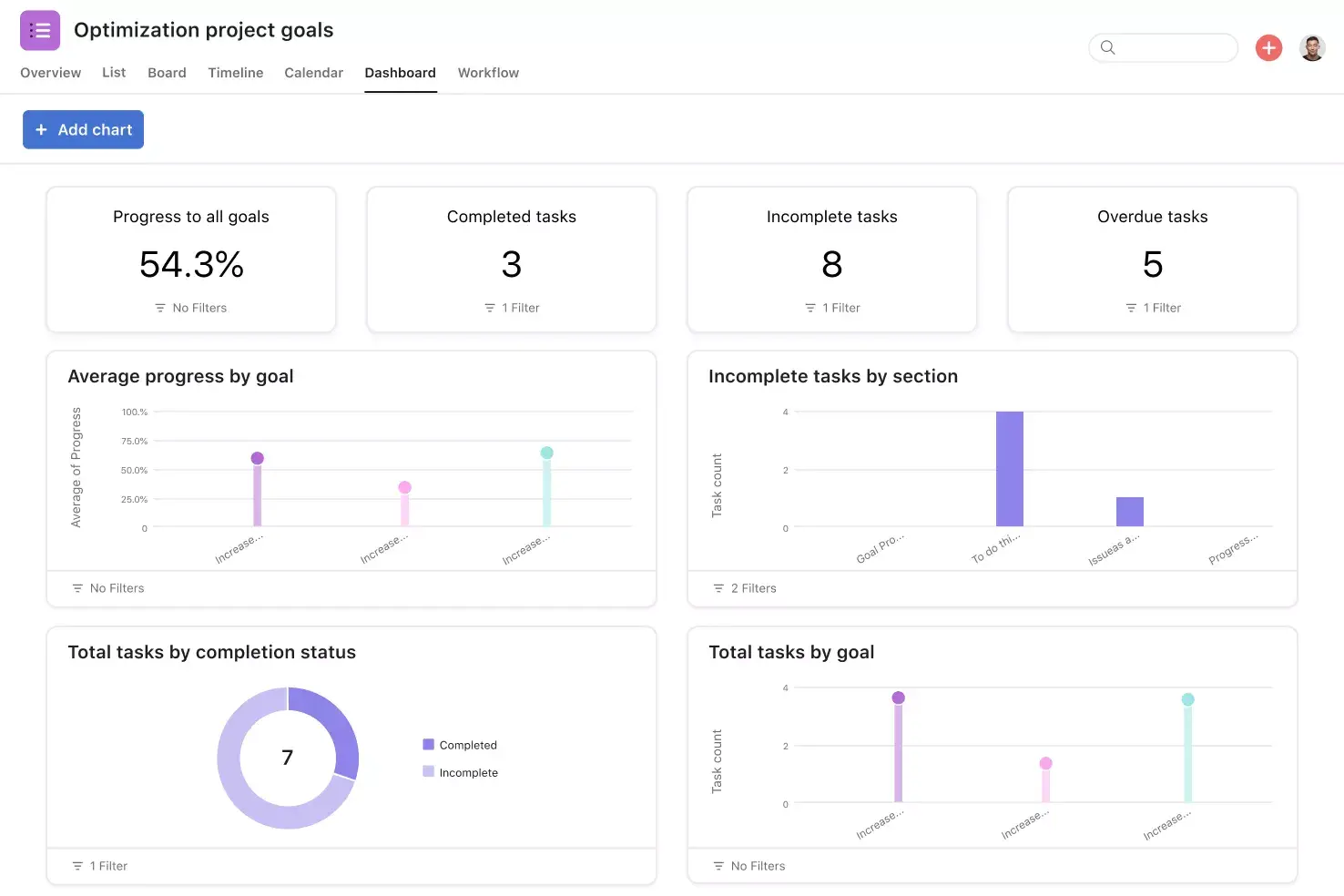
6. Project reporting template
Best for: Stakeholder updates
What it includes
A project reporting template in Asana is an organized way to let stakeholders know how things are going. It usually has status summaries, important risks and issues, and action items, all in a format that makes it easy to look back on and compare updates over time.
Setup tips:
- To keep updates constant, make sure that the fields for reporting (status, risks, next steps) are the same.
- To eliminate gaps in communication, set a defined reporting schedule, like once a week or every other week.
- Make sure that updates are short and to the point, and that they focus on decisions, not just what is happening.
- Point up hazards early so that stakeholders may do something before problems get worse.
▶︎ Check it out
Asana templates for functional teams
Because each function has its own process, Asana templates for projects appear vary from team to team. The idea is to make sure that work proceeds from planning to execution in the same way for everyone, but not to have every team use the same structure.
Here’s how different teams typically use Asana templates for projects.
Templates let each team stay organized while also working in a style that feels right to them. This makes it easier to keep track of workflows over time and makes sure that reporting is consistent throughout the company.
How to create your own Asana template
To make custom Asana templates, you need to turn a successful project into a process that can be used again and over again. This method works best when the options that are already there don't quite fit how your team works.
Step 1: Start with a real project
Start with a project that is already doing well. It should have a clear framework, with specific steps, and show how your team actually gets things done.
Step 2: Clean it up
Take out everything that won't be used again, like temporary notes, one-time chores, or anything that are no longer needed. The idea is to keep just the parts that will be used again.
Step 3: Standardize the structure
Set up the main workflow. This includes creating sections (workflow stages), giving tasks consistent names, and setting up dependencies that show the right order of work.
Step 4: Add fields and automations
Add the fields that your team needs, like priority and status. If you can, use automations to give out assignments or change deadlines. This helps the workflow grow without adding more work.
Step 5: Save as a template
Once everything is organized and neat, turn the project into a template and save it so that everyone on your team may use it again.
When to create custom templates
If you need to keep things consistent and under control, custom templates are a good idea. You should make one when:
- Workflows repeat frequently.
- Teams need to function in the same way all the time.
- There must be a set way for compliance or approvals to happen.
- Several teams work together on the same structure.
Custom templates are what make Asana more than just a task manager; they make it a system that helps your business run smoothly.
Final thoughts
Asana project templates are more than just shortcuts; they help you organize how you conduct your work. They help make workflows more consistent, cut down on setup time, and make scaling easier without compromising control.
That structure only works if teams really use those templates all the time, though. It's better to use systems that can be repeated than to do activities one at a time. You can use pre-made templates and change them as you go, or you can make your own when you need to. Over time, employment gets more steady and simpler to handle.
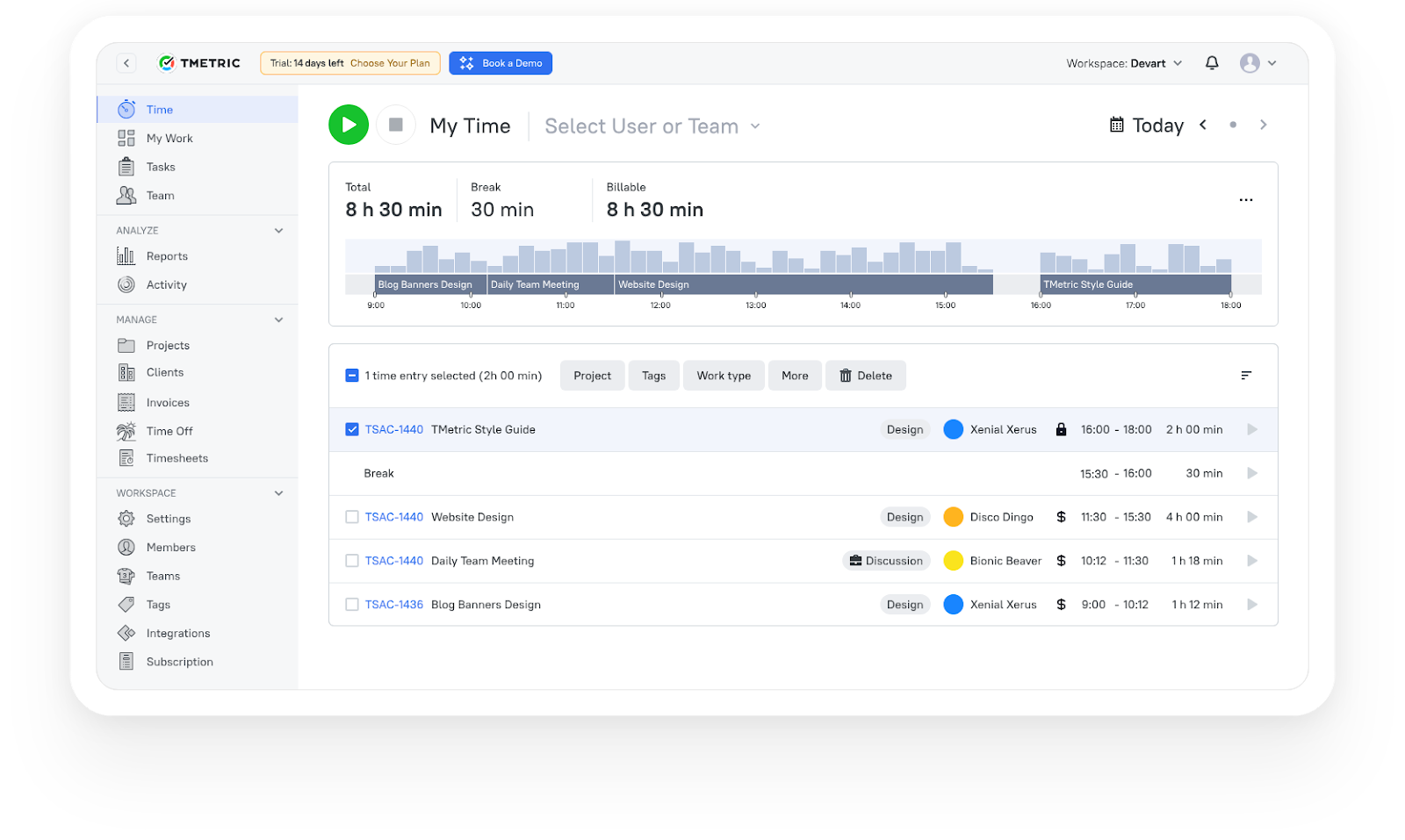
3,000+ companies, teams, and individuals worldwide use TMetric to track time, manage work, and bill with confidence.
FAQ
What are templates in Asana?
Asana templates are project or task frameworks that can be used again and again. They help teams standardize their workflows so they don't have to start from scratch every time.
How to find templates in Asana?
In Asana, click "Create Project," then "Use a template" to see the template library or your team's saved templates.
How to use task templates in Asana?
To use task templates in Asana, make a task that can be used again and again with set subtasks, owners, and fields. Then, use it whenever you need to do the same kind of work again.
Can you customize Asana templates?
You may fully customize Asana templates. You can change tasks, fields, timeframes, automations, and workflows to fit the way your team works.
What are the best Asana templates for project management?
Project planning, agile sprint planning, timeline (Gantt), capacity planning, and reporting templates are some of the best Asana templates for managing projects.