
Integrating invoices into QuickBooks Online
This TMetric release introduces invoice integration with QuickBooks Online, reducing manual entry and billing errors while automatically mapping invoices and payments. It also adds recurring invoices, helping you automate and simplify client billing.

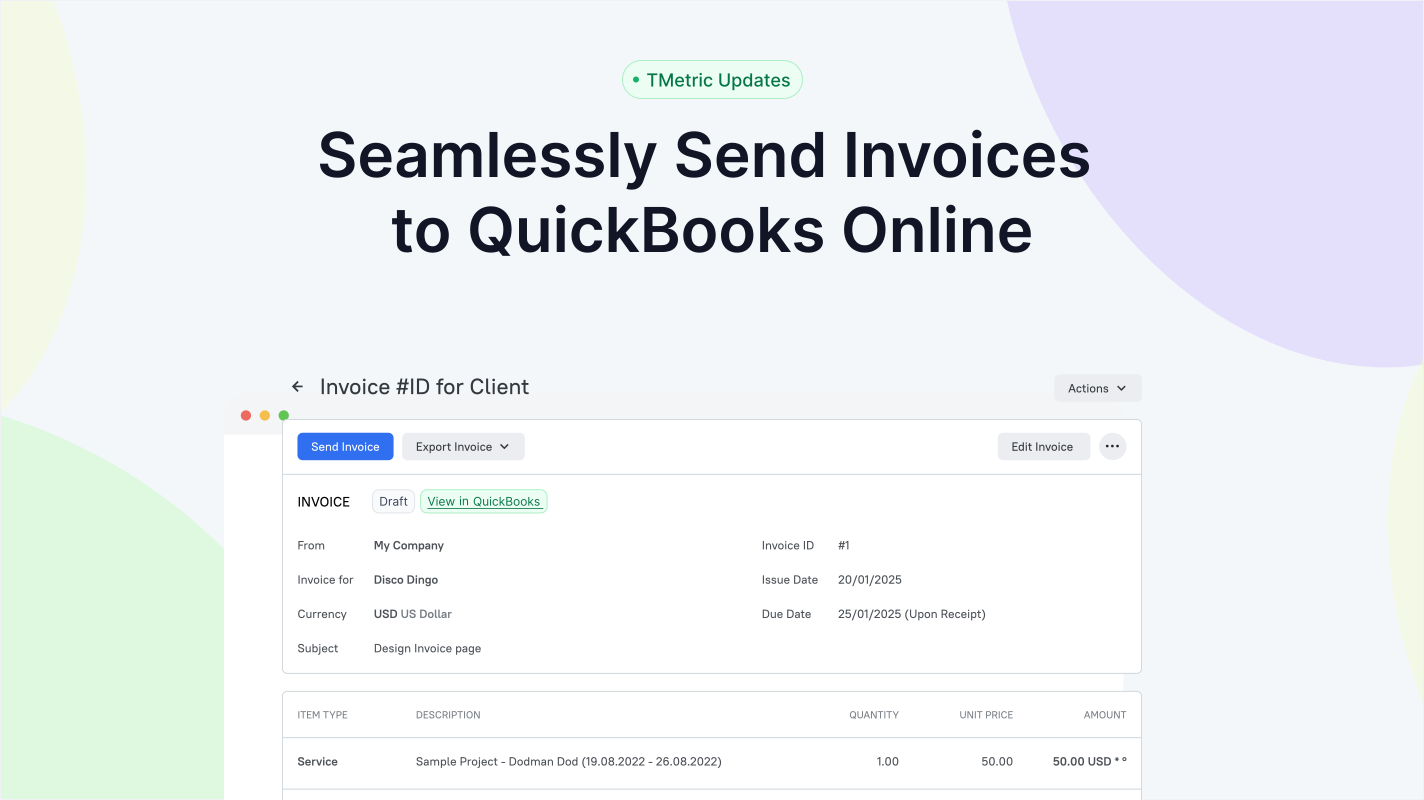
With this TMetric release, we’re introducing a convenient new feature: Copying Invoices to QuickBooks Online, currently in Beta. It eliminates manual data entry, reduces billing errors, and automatically maps invoices and payments to your accounting records. You can now also use Recurring Invoices (Beta) in TMetric to save time and streamline your billing process.
Copying invoices to QuickBooks Online
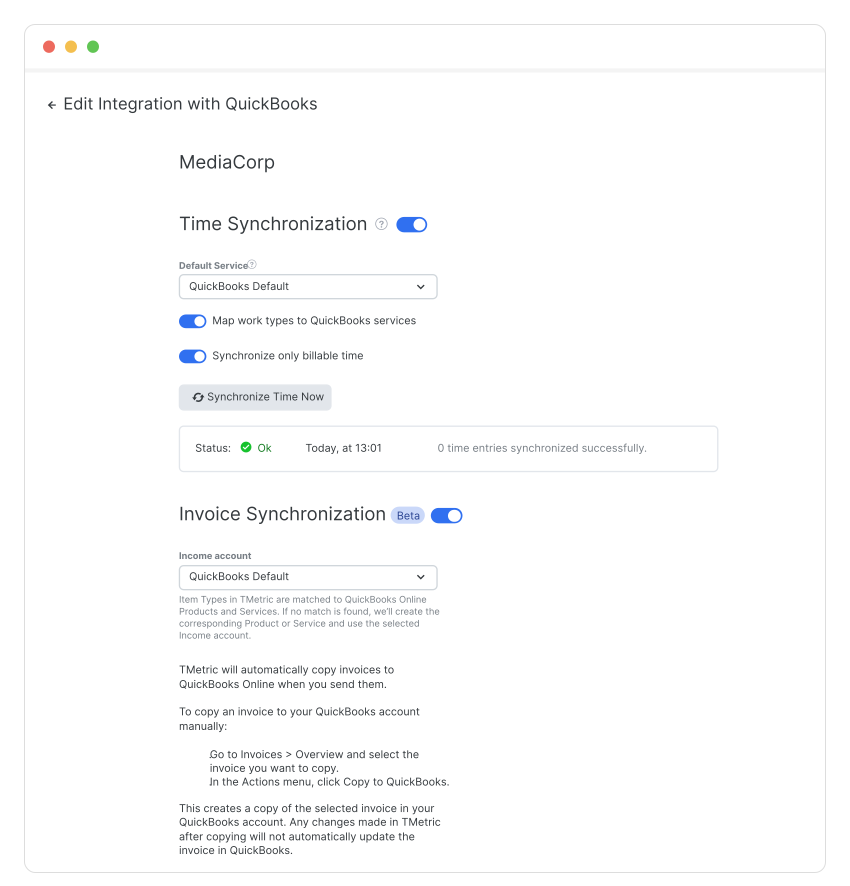
Now, TMetric can not only sync time entries but also copy invoices to QuickBooks Online. Invoice data from TMetric is automatically mapped in QuickBooks. Invoices can then be reviewed, updated, sent to clients, and used in reports.
To copy an invoice to your QuickBooks account:
- On the Integrations page, select QuickBooks from the New Integration drop-down and click Connect.
- Sign in to QuickBooks and choose a company if you have multiple accounts.
- Enable the Invoice Synchronization option on the Manage Integration with QuickBooks page.
- Go to the Invoices page and open the invoice you want to copy to QuickBooks.
- Click the overflow menu icon, select Copy to QuickBooks, and your invoice will appear in QuickBooks.
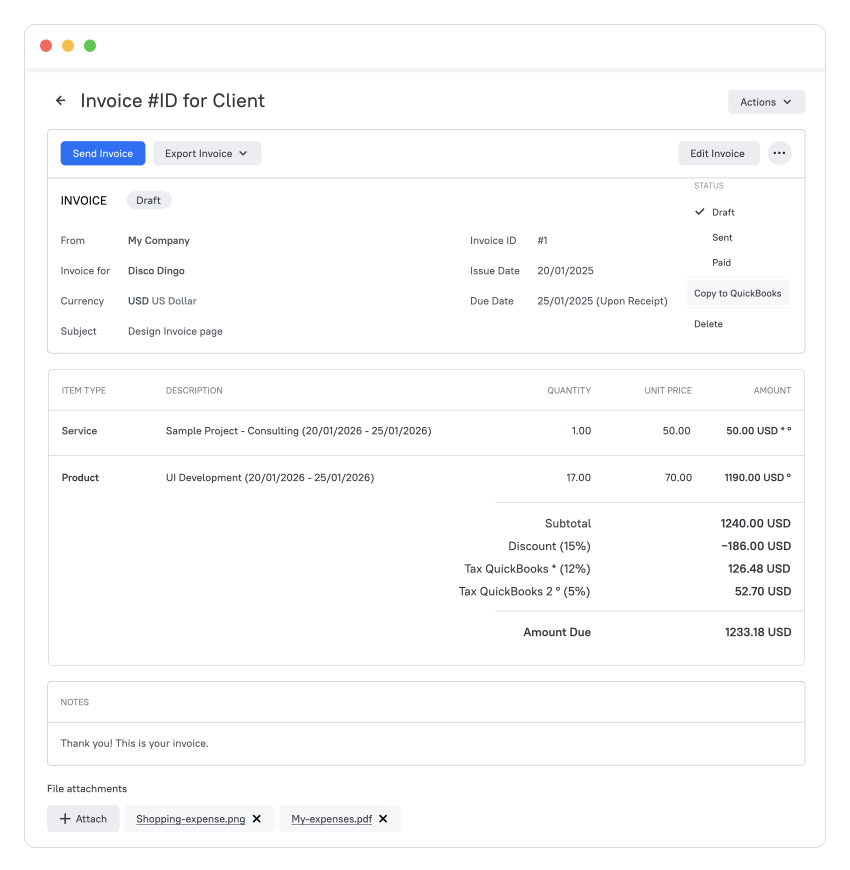
Integrating invoices to QuickBooks Online saves time, reduces errors, and keeps your billing and accounting records accurate and up-to-date.
Recurring Invoices
In TMetric, you can now automatically generate invoices for clients with regular services or retainer contracts. This streamlines billing, avoids errors, and ensures timely invoices for predictable cash flow.
To create a recurring invoice, do the following:
- Go to the Invoices page and open the Recurring tab.
- Click + Recurring Invoice to create a new recurring invoice.
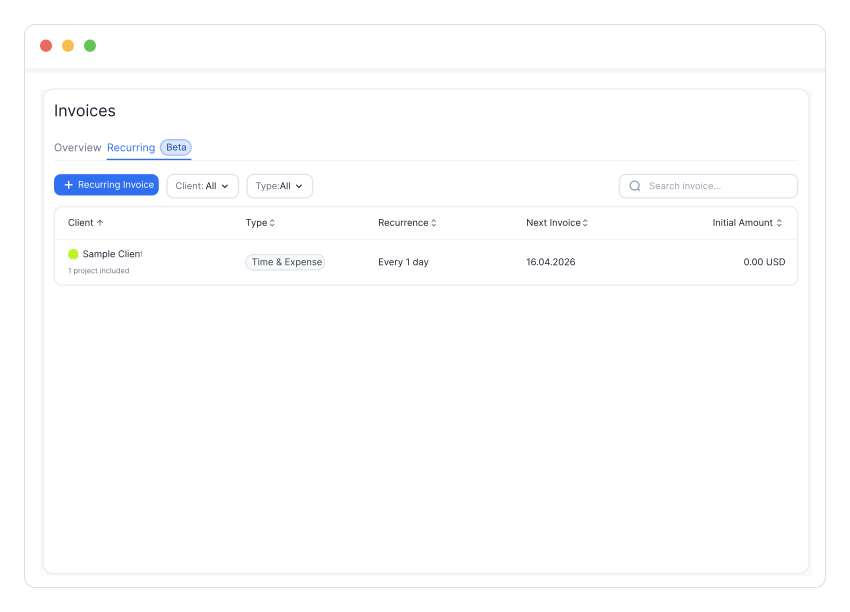
- Customize the invoice as needed: add a client, choose the invoice type and subject, set its recurrence, select the next invoice date, and specify the amount to be invoiced.
- Click Save, and the invoice will appear in the invoices list on the Recurring tab of the Invoices page. It will then be generated automatically according to the schedule you’ve set.
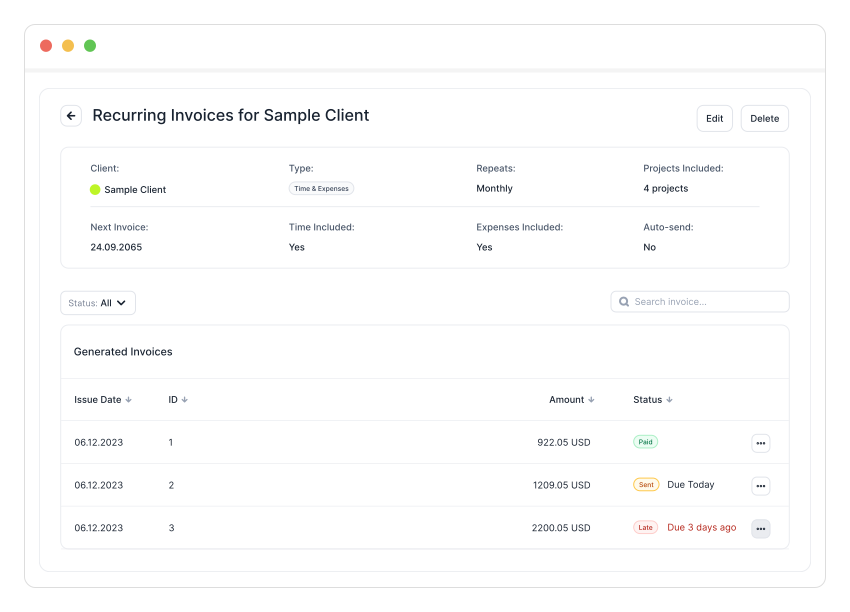
Automate the billing process using recurring invoices to save time, reduce errors, and ensure timely payments.
About TMetric
TMetric is a time tracking web app for companies that track project profitability and optimize workflow. Great control over time intervals and project budgets, flexible billable rates, crystal clear reporting, transparent team monitoring, and lots of integrations, all wrapped up into a light interface. Calculation on how much time is spent on certain projects, clients, and tasks in an instant.